
Data Transformation in Power BI: A Comprehensive Raw Data
Introduction
Cleaning and transforming raw data are a crucial step in creating accurate and insightful Power BI reports. The Power Query Editor in Power BI Desktop offers a robust set of tools for shaping data to meet specific needs. Here’s a step-by-step guide to help clean raw data in Power BI.
Things need to be considered while cleaning raw data
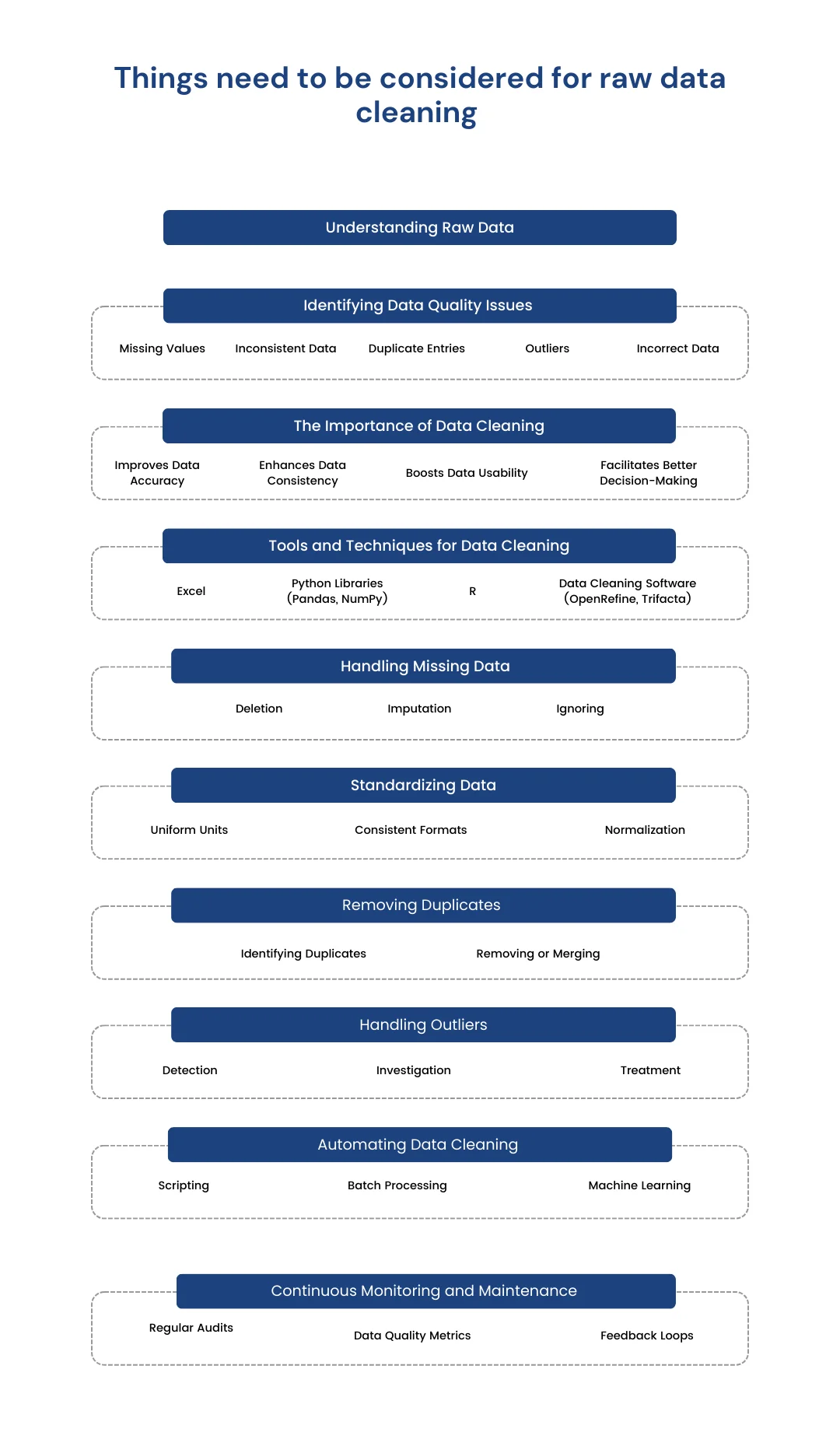
Steps and procedure to clean raw data (General Overview)

Getting started to clean Initial raw data in Power Query in Power BI
To begin cleaning data, open Power Query Editor by selecting the Transform data option on the Home tab of Power BI Desktop. In Power Query Editor, the data in the selected query displays in the middle of the screen. The Queries pane on the left lists the available queries (tables). All steps taken to shape data are recorded and applied each time the query connects to the data source. This ensures data is consistently shaped according to specifications without altering the original data source.
Identify Column Headers and Names
First, identify the column headers and names within the data and evaluate their placement to ensure they are correctly located. If the data imported does not have the correct headers, it can be difficult to read and analyze.
Promote Headers
If the first row of data contains column names, promote this row to be the header. This can be done by selecting the Use First Row as Headers option on the Home tab or by selecting the drop-down button next to Column1 and then selecting Use First Row as Headers.
Rename Columns
Examine the column headers to ensure they are correct, consistent, and user-friendly. To rename a column, right-click the header, select Rename, edit the name, and press Enter. Alternatively, double-click the column header and overwrite the name.
Remove Top Rows
Remove some of the top rows if they are blank or contain data that is not needed. Select Remove Rows > Remove Top Rows on the Home tab to remove these rows.
Remove Unnecessary Columns
Removing unnecessary columns early in the process helps focus on the data needed and improves the performance of Power BI models and reports. Remove columns by selecting the columns to remove and then selecting Remove Columns on the Home tab. Alternatively, select the columns to keep and then select Remove Columns > Remove Other Columns.
Unpivot Columns
Unpivoting columns can be useful when transforming flat data into a format that is easier to analyze. Highlight the columns to unpivot, select the Transform tab, and then select Unpivot Columns. Rename the resulting columns to appropriate names.
Pivot Columns
The pivot column feature converts flat data into a table that contains an aggregate value for each unique value in a column. Select Transform > Pivot Columns and choose the column to pivot. Choose an aggregate function such as count, minimum, maximum, median, average, or sum.
How to simplify data structure in Power BI
Rename Queries
Rename uncommon or unhelpful query names to more user-friendly names. Right-click the query in the Queries pane, select Rename, and edit the name.
Replace Values
Use the Replace Values feature to replace any value in a selected column with another value. Select the column, then Replace Values on the Transform tab, enter the value to find and the value to replace it with, and select OK.
Replace Null Values
If the data contains null values, consider replacing them with a value like zero to ensure accurate calculations. Use the same steps as replacing values to replace null values.
Remove Duplicates
To keep only unique names in a selected column, use the Remove Duplicates feature. Select the column, right-click the header, and select Remove Duplicates. Consider copying the table before removing duplicates for comparison.
Best Practices for Naming Tables, Columns, and Values
Consistent naming conventions help avoid confusion. Use descriptive business terms and replace underscores with spaces. Be consistent with abbreviations and avoid acronyms in values to ensure clarity.
By following these steps and best practices, effectively clean and transform raw data in Power BI, setting the stage for creating powerful and insightful reports.
Evaluate and Change Column Data Types
Why Correct Data Types Matter
When importing a table into Power BI Desktop, it automatically scans the first 1,000 rows to detect data types. However, this process can sometimes result in incorrect data type detection, leading to performance issues and calculation errors. Incorrect data types can prevent accurate calculations, deriving hierarchies, or establishing proper relationships between tables. For instance, a column intended for date values but detected as text will hinder time-based calculations and prevent the creation of date hierarchies.
Changing Data Types in Power Query Editor
To ensure data types are correct:
Open Power Query Editor: In Power BI Desktop, go to the Home tab and select Transform Data.
Select the column: Choose the column with the incorrect data type.
Change the Data Type: Change the data type by:
Selecting Data Type in the Transform tab and choosing the correct type.
Clicking the data type icon next to the column header and selecting the correct type from the list.

