FAQ: Mail
Are you receiving your MerchantCircle emails? If not, try these steps to ensure that your mail is being delivered to you.
Gmail
Allow Gmail to receive MerchantCircle emails

- Log into your Gmail account
- Click on "Spam" on the left side column of Gmail
- Check for MerchantCircle emails in Spam list
- Select MerchantCircle email
- Click the "Not Spam" button above the Spam listings
Yahoo! Mail
Allow Yahoo to receive MerchantCircle emails
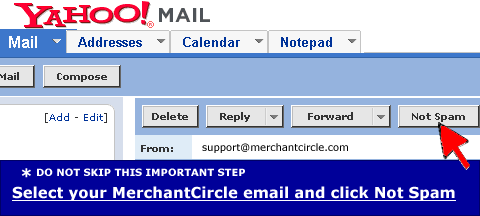
Make sure Spam messages are not being deleted
- Log into your Yahoo account
- Click on "Bulk Mail" on the left side column of Yahoo mail
- Click on "Spam Guard Settings"
- If "immediately delete these messages upon receipt" is selected; please select "save messages in the Bulk folder for 1 week"
Check Bulk Mail Folder for MerchantCircle emails
- Click on "Bulk Mail" folder
- Look for and select email from MerchantCircle
- Click the "Not Spam" button in the above toolbar
If you cannot find any mailings from MerchantCircle and want to ensure that future mailings arrive; you can set up a filter
- Click on "Options"
- Click on "Filters"
- Click "Add"
- Enter a Filter Name ie: MerchantCircle
- Enter MerchantCircle.com into "From header contains: "
- Select to Move the message to Inbox
- Click "Add Filter"
MSN - Hotmail
Allow MSN - Hotmail to receive MerchantCircle emails

Check Junk Mail folder for MerchantCircle emails
- Log into your MSN - Hotmail account
- Click on "Junk Mail" folder
- Look for and select email from MerchantCircle
- Click the "Not Junk" button in the above toolbar
- Select to add MerchantCircle to your safe list
If you cannot find any mailings from MerchantCircle and want to ensure that future mailings arrive; you can set up your safe list
- Log into your MSN - Hotmail account
- Click the "Options" button on the far right side
- Click on "Junk Email Protection"
- Click on "Safe List"
- Enter merchantcircle.com
- Click "Add"
AOL
Allow AOL to receive MerchantCircle emails

Check Spam folder for MerchantCircle emails
- Log into your AOL account
- Click on "Spam Folder"
- Look for and select email from MerchantCircle
- Click the "Not Spam" button
If you cannot find any mailings from MerchantCircle and want to ensure that future mailings arrive; you can set up your custom sender list
- Log into your AOL account
- Click on "Settings"
- Click on "Spam Control"
- Click on "Control Who I Get Mail From"
- Select "Allow mail only from senders on my Custom Sender List"
- Click on "Custom Sender List"
- Enter merchantcircle.com into list
Outlook
Allow Microsoft Outlook to receive MerchantCircle emails

Check Junk Mail folder for MerchantCircle emails
- Open your Outlook email client
- Click on the "Junk Email" folder
- Look for and select email from MerchantCircle
- Click on the "Not Junk" button in the above toolbar
If you cannot find any mailings from MerchantCircle and want to ensure that future mailings arrive; you can set up your custom sender list
- Click on "Actions" in the above toolbar
- Select "Junk Email"
- Select "Junk Email Options"
- Select the "Safe Sender" tab
- Click "Add"
- Enter merchantcircle.com