Prefer to talk to a pro?
Call today, and let us connect you with the perfect merchant!
Call today, and let us connect you with the perfect merchant!
Top Computer Electronic Stores in Prescott, AZ








Prefer to talk to a pro?
Call today, and let us connect you with the perfect merchant!
Call today, and let us connect you with the perfect merchant!
Where do you need Computer Electronic Stores ?
Related articles

How Does Recycling Help the Environment?
How to Contact Microsoft Technical Support

How to Charge for Remote IT Support
Updates & tips
Why Your Computer Is Slow and How to Speed It Up
Here are the main reasonswhy your computer is running slowand how to resolve each one of them. Hardware issues that can slow your computer down. 1. Your computer has a slow processor. 2. Your computer does not have enough ram. 3. Your Hard Drive is too slow or is dying. Software Issues that can slow your computer down. 1. Way too many items in your startup. 2. Unnecessary services starting automatically. 3. Viruses, Spyware, Adware, (malware). 4. Security software that uses too much CPU and Memory 5. Graphic intensive desktop environment. 6. Invalid registry entries. 7. Highly fragmented hard drive. 8. Outdated Drivers and Software. Slow Processor Your computers processor (A.K.A the CPU or Central Processing Unit) is what actually performs all the work. It can calculate billions of operations per second. The CPU executes program code and returns results to ram and/or hard disk. So, the faster the processor and the more cores it has the faster your programs will execute and return results. If your processor is slow, or just not fast enough for you, then it's time to upgrade. There are hundreds of processors on the market and more being created every day. In order for you to upgrade your processor you must consult your computers motherboard documentation to see what type of processor your computer uses. Once you have acquired that information you can visit your local\online computer store and order a processor upgrade. Upgrading the processor is delicate task and should only be performed by a competent professional. Not Enough Memory - And How to Get More! First, what is RAM anyway? What RAM (Memory) Looks Like RAM physically looks like a 4 inch circuit board with tightly packed microchips. These RAM "sticks" easily snap into your motherboard making upgrades really easy! What RAM (Memory) Does RAM (or Random Access Memory) is temporary storage for executable program code (your programs like Microsoft Word). When the processor becomes free and is ready to process more program code (MS Word for Example) it looks to RAM and basically says "give me something to process". The RAM then "feeds" the processor as much information as the processor can take. When youhave enoughRAM... · The more RAM your computer has the more programs your computer can run at the same time without experiencing drastic slow downs · More RAM also means you'll behearing a lotlessof that annoying hard drive spinning noise! · Your computers startup timeandpost startup time isdrastically reduced Below are some symptoms ofnot having enough RAM: · slow program execution · almost non-stop hard drive activity · seeing lots of the hour glass · horrible startup times How much RAM do you need for your PC?Well obviously more is better, but here are minimum requirements I give my clients: · Windows XP - 512 Megabytes minimum · Windows Vista - 2 Gigabytes minimum Here's how to find out how much RAM your PC has: 1. Right-Click "My Computer" in XP or "Computer" in Vista or Windows7 2. Click Properties 3. You can see your RAM value in this windows either in GB or MB Now, not to confuse you even more butthere are many types of RAMand finding out which kind you need can be challenging. Call us for a quote. Slow or Damaged Hard Drives Meet the slowest part of your computer, the Hard Drive. The Hard Drive is a rewritable disc that contains your computers operating system, program files and personal files (like documents, pictures, etc.). So, why is it the slowest part of your computer? The answer is moving parts. Any device that functions via moving parts is much slower than non-moving devices such as RAM, Processors and Data Buses. How does the hard drive work? Hard Drives consist of a magnetic disc (also called a platter) that is spun at a very high rate. During this spinning process an "arm" is moved up and down across the disk writing patterns of 0's and 1's which form your data. This arm also reads data in the same fashion. Can I speed my hard drive up? No. Your hard drive is as fast as it's going to get. Hard Drive performance is measured in RPM's (revolutions per minute). The more RPM's the disc (or platter) is spun at the faster data can be read and/or written. You're not "stuck" with the hard drive you have now, it can be upgraded. Upgrading the hard drive can be tricky because you can make 1 mistake that can wipe out all your personal data. So, what kind of hard drive should you get? First, you need to find out what type of hard drive you have:SATAorEIDE (PATA). Next, look at the RPM's. The RPM's should beat least7200 RPM. Finally make sure the hard drive is the same size as your current drive or larger. Optimize That Startup Your Windows startup consists of programs that willautomatically be loaded and startedwhen your computer boots. This loading and starting happensall at once! This is the #1 cause for people to say"!@#$ this slow computer!". The following steps below will show you how to optimize your windows startup: 1. Click start on XP or Click the globe on Vista. 2. Click "run" in XP. Vista users will type the following command where it says "start search" 3. Type: msconfig 4. Click the "startup" tab 5. Now, you'll see a bunch of checkmarks and some text next to each one (see image A). These are items that are starting up each time your computer boots. Keep in mind that every one of these items use RAM, Processor and Hard Drive resources all at the same time (at boot-time). 6. Please uncheck any items that you don't want to start automatically. Hint: I personally only allow my antivirus to start, everything else I uncheck. If I need to use it then I'll start it manually. 7. After you're finished unchecking items please click apply and then reboot your PC. 8. Ahhhh...much better!! What a fast startup now. 9. You will be presented with a window (see image B). Please click the checkmark and then click OK. Optimize Your Desktop Environment If you think your desktop looks pretty then you're probably usingtoo much your RAM and Processorjust to "draw"that shiny, transparent and generally sexy desktop. If you're serious about running your computer atmaximum speedthen you need to choose a very plain, low resource intensive desktop environment. The following steps below will show you how to accomplish this in Windows XP and in Windows Vista. On Windows XP: 1. Right Click "My Computer" 2. Click Properties 3. Click the Advanced Tab 4. Under Performance click Settings 5. Click the radio button "Adjust For Best Performance" 6. Click Apply 7. Your screen will go gray for a few seconds while your desktop is being optimized for the best possible performance. 8. When the optimization has been completed click Ok. How to optimize the Windows Vista desktop environment: 1. Right Click "Computer". 2. Click Properties. 3. On the top left of the screen click "Advanced System Settings". 4. Under performance click settings. 5. Click the radio button "Adjust For Best Performance" 6. Click Apply 7. Your screen will go gray for a few seconds while your desktop is being optimized for the best possible performance. 8. When the optimization has been completed click Ok. 9. You Desktop will now look like: Get The Best Antivirus! Using a "top notch" antivirus solution isan absolute must. If your PC gets infected withjust onetrojan virus that single infection can explode into hundreds of other infectionsleaving your PC pretty much useless! Also, please remember that your computer should only have 1 antivirus loaded at a time. Disable Services That Aren't Needed On a Windows XP/Vista home pc there are quite a few services that really aren't needed for the average home user. Preventing these services from starting automatically can save you valuable processor and ram resources. If you don't feel comfortable about disabling windows services bring the PC to us for a Tune Up. Hard Drive Fragmentation Hard Drivefragmentationoccurswhen you save a fileon your hard drive. During this process the hard drive may be performing many actions and can't always save the file in one continuous "chunk of data. In an effort to provide you as much speed as possible when you save a file the hard drive will "fragment" the file all over the hard drive disc. Sounds confusing huh? Like your file is broken? It's not. When you want to open and read that file (it could be a large word document for example) your computer will find all the fragments of data on the hard drive and then reassemble the file...here is where things get slow. Imagine that you have hundreds or thousands of fragmented files! Your computer has to process the reassembly of each file from thousands of fragments! Ouch. That could take a while. Fortunately for us fragmented people, there is a very simple solution! Windows XP and Windows Vista both ship with free hard drive defragmenting software that is super easy to use. Hard drive defraggers simply scan the hard drive for file fragments and put them back together. Once those fragments are reassembled via the defragger your files will open faster and your computer (in general) will run so much better. Outdated Software - Do those windows updates! Believe it or not, the Microsoft software development teams are always working hard to keep your pc running safe, intuitive and as fast as possible. Microsoft makes it really easy to update your Windows PC. To Check for and install Windows XP Critical Updates: Go to http://update.microsoft.com and click the express scan button. After the express scan finishes install any updates that are available for installation. To Check for and install Windows Vista Critical Updates: 1. Click the Windows Globe at the bottom left. 2. Click Control Panel 3. Click Windows Update 4. Click Check For Updates 5. Install Any Updates Found
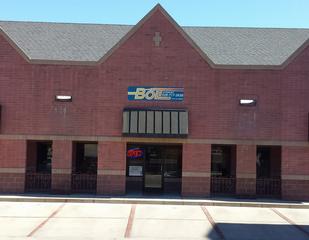
Bulleri Networks is now Bolt Internet!
The employees of Bulleri Networks bought the company and changed the name to Bolt Internet. As employee owners we have an even bigger incentive to provide the best customer service for our clients. Please visit us in our new offices at 600 E Gurley St. Ste E in Prescott.
XzylaCorp Computer Repair New Site
XzylaCorp Prescott Computer Repair just released our new web site. If you like, you can check it out at http://www.XzylaCorp.com. XzylaCorp is also having an introductory offer giving the first hour of computer support for free to new clients. So if you need some computer help try us for free! Call us any time at 1.855.922.2587 with any questions you may have.