Prefer to talk to a pro?
Call today, and let us connect you with the perfect merchant!
Call today, and let us connect you with the perfect merchant!
About El Paso, TX
El Paso is a city in the El Paso County of Texas. It is known for its educational institutions and business. Major attractions of the city include the Big Bend National Park and the El Paso Museum. Each year Texas Showdown Tattoo Festival is held here in June. Among the biggest companies in El Paso are the El Paso Natural Gas Company and Spira Footwear. Among biggest schools here are the Cathedral High School and St. Joseph’s Catholic School. One of the best places to visit when you are in El Paso is the El Paso Zoo. Famous persons from El Paso include former president George Bush.
Best Businesses in El Paso, TX




Prefer to talk to a pro?
Call today, and let us connect you with the perfect merchant!
Call today, and let us connect you with the perfect merchant!
Related articles
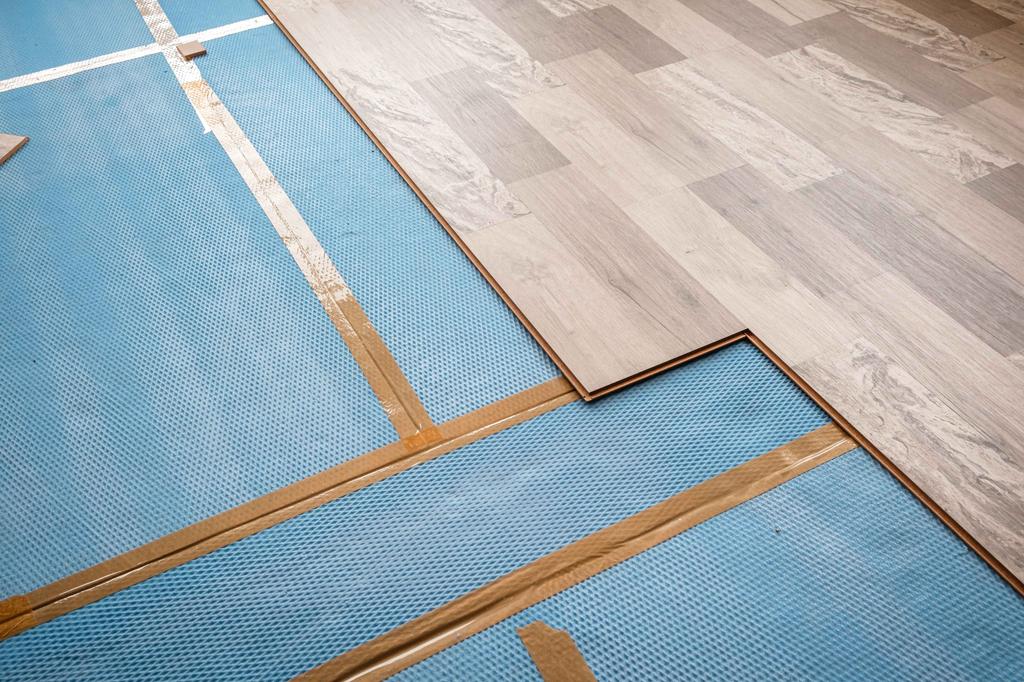
How to Fix Squeaky Floors: Easy DIY Solutions That Actually Work

Landscaping Gravel Types: Pros and Cons
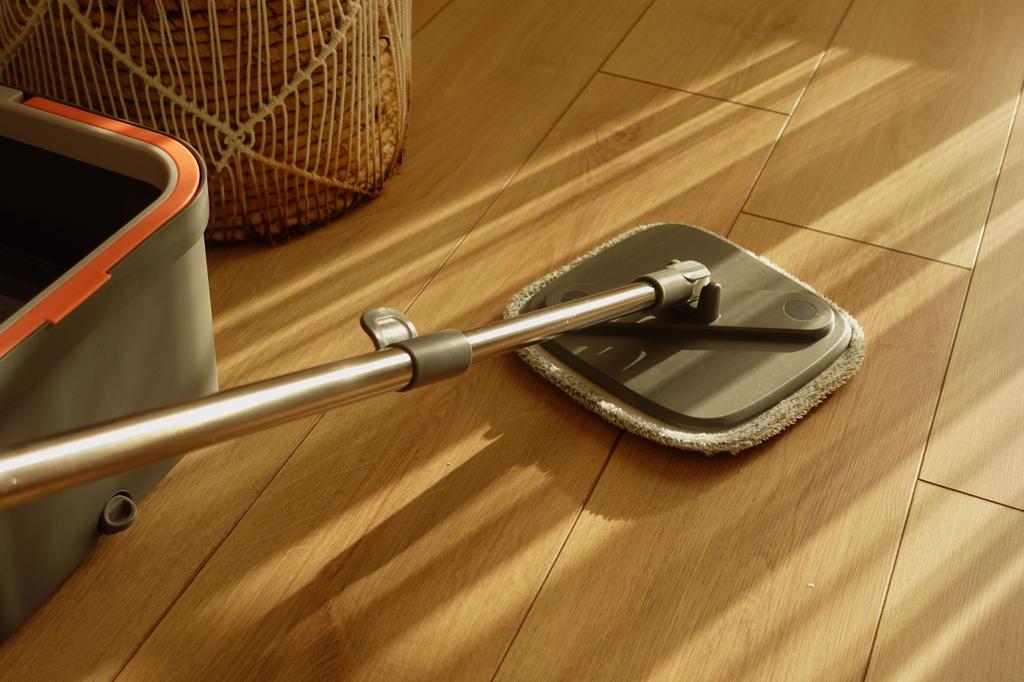
How to Clean Hardwood Floors: Simple Steps for Long-Lasting Shine
Coupons
Updates & tips
How to Connect HP Printer to New WiFi Network? (Full Guide)
Do you have an HP printer and want to connect it to WiFi? If yes, then you are in the right place because this blog will answer all your questions. If you are a beginner, you might not know about the different methods to set up a wireless connection on your HP printer, but don’t worry — I’ve got you covered. In this blog, I am going to share the simplest and quickest ways to get it done, step by step. I enjoy helping people with their technical issues, and here, I will guide you through setting up a WiFi connection on your printer easily. Prerequisites for Connection Before starting the setup, make sure you know your printer’s model name and whether it supports wireless connectivity. You can check this information in the printer’s instruction manual to confirm. Once verified, note down your printer name and ensure you have a stable internet connection to avoid any network issues during the setup process. Step 1: Turn On the HP Printer After unboxing the printer, connect its power cord to a nearby wall outlet. Next, press and hold the power button on the printer to turn it on. When the power light becomes solid, it indicates that the printer is powered on and ready to use. Step 2: Connect the HP Printer to WiFi There are several ways to connect an HP printer to WiFi. You can connect it via the HP Smart app, the printer’s control panel, or the WPS push button method. All the methods are simple and convenient, depending on your printer model and preference. I will describe all three methods so that you can select the best for your printer. Method 1: Printer’s Control Panel The control panel may differ across HP printer models. It may include a display or physical buttons with a small display. So, you may need to explore the control panel to find the right settings. However, I’ll share the general steps for connecting the printer to WiFi. Install the printer near a wireless router. Use the touchscreen to locate the Settings or menu. If the printer has physical buttons, press the Settings button. Locate Network Settings in the control panel under Settings, then select Wireless Setup Wizard. Note: The setting may be written differently on the display. Select the related option. The printer will now show a list of available wireless networks. Choose your WiFi network, then enter the password for that connection using the on-screen keyboard or the physical keypads. When the printer connects successfully, the wireless light will turn solid blue. It indicates that the wireless connection has been set up. Method 2: WPS Push Button The WPS (Wi-Fi Protected Setup) method helps connect your printer directly to your router without entering a password. Ensure that your printer and router have a WPS button. Then, follow these steps to connect the printer to WiFi. Press the WPS button on the router. If the button is very small, use a pin to press it. After that, press the WPS button on the printer. Note: If your HP printer doesn’t have a physical WPS button, select it on the display and enter the WPS PIN if required. The PIN can be written at the bottom of the printer on older models. Otherwise, you can note it from the information sheet that you print during setup. Keep the button pressed and let the printer and router recognize each other. After a few seconds, both devices will connect automatically. The printer’s WiFi light will stop blinking and stay solid blue. Method 3: HP Smart App This method is helpful when you’re using a mobile device to connect your HP printer to WiFi. Follow the instructions below to set up the connection. Go to the Play Store or App Store on the mobile device. Search for the HP Smart app and tap “Get” or “Install.” Once the app is installed, open it on the mobile device. Final Words Connecting an HP Printer to WiFi is simple if you know the right steps. I have shared the three best methods: using the printer’s control panel, the HP Smart app, and via the WPS push button. You can use any of them depending on your printer model and your preference. Also, it’s important to check your printer’s name before moving ahead with the wireless connection. Also, use the printer’s control panel or touchscreen to find the network settings. If your printer supports the WPS button, it can be one of the easiest ways to set up the connection. Press enter or click to view image in full size Frequently Asked QuestionsWhy Is HP Printer Not Connecting to a WiFi Network? If the printer is not connecting to WiFi, it can be due to a poor internet connection or a technical issue with the printer. In this situation, you can restart your printer, computer, and wireless router. Then try connecting the printer to the WiFi again. Do I Need to Download and Install HP Printer Drivers? If you are using a computer with your printer, you must download and install printer drivers from the official HP website. However, if you are using a mobile device, only the HP Smart app is required. Therefore, download and install the printer drivers only when you’re using a computer. Which Wireless Method Is Best for My HP Printer? Any wireless method that connects your printer reliably to the network is suitable for your HP printer. You can connect the printer to a standard WiFi network using the printer’s control panel, the WPS push button, or the HP Smart app. Choose a method based on your preference, and use the WPS option only if both your printer and router have a WPS button. Source: How to Connect New HP Printer to WiFi
How to Connect HP Printer to New WiFi? (Full Guide)
Changing your WiFi network and not sure how to get your HP printer back online? Don’t worry — you are not alone, and it’s easier than it sounds. Whether you have upgraded your router or moved to a new home, connecting your printer to the new network is very important for printing files, photos, or documents without any hassle. Here, I am going to show you the top 3 ways to connect your HP printer to a new WiFi using the HP Smart app, the printer’s control panel, or the WiFi Protected Setup (WPS) button. Let’s get your printer up and running in no time! Check Printer and Network Requirements Before you connect your printer to a new WiFi, it is important to ensure your printer and network meet the basic requirements. First, make sure your printer is on and placed within the range of your WiFi router to maintain a stable signal. Most of the HP printers work best with a 2.4 GHz network, so confirm your router is broadcasting on this frequency. If your printer has a touchscreen, then you can use the Wireless Setup Wizard feature for easy configuration. For models without a screen, you need to press and hold the Wireless button on the printer, then press the WPS button on your WiFi router. On the network side, have your WiFi name and password ready. Also, ensure your network is secured with a strong password and your printer is compatible with the network band. If the printer isn’t in setup mode, then restore its network settings to start fresh. Top 3 Ways to Connect HP Printer to a New WiFi Network Below, I am going to show you 3 different ways to connect your HP printer to a new WiFi network: using the HP Smart app, the printer’s control panel, and the WiFi Protected Setup (WPS) feature. Method 1: With the HP Smart App Connecting your printer to a new WiFi is simple using the HP Smart app, available for computers as well as mobile phones. The first step is to download the app from the Windows Store, App Store, or Google Play. Also, make sure your printer is on before opening the app. Once the app is open, click Add Printer, and it will automatically search for nearby printers. When your printer name appears in the available list, select it and perform the on-screen steps. You must enter your WiFi network name and password to complete the connection. Once the setup process is done, the app will confirm that your printer model is connected to the new WiFi network. Now, you can print, scan, and manage your printer from the HP Smart app, which makes the process easy and hassle-free. Method 2: Using Printer’s Control Panel If you prefer not to use an app, you can connect your printer to a new WiFi through the printer’s control panel. This method works well for printers with a touchscreen or physical buttons. First of all, turn on your printer and access the Wireless Settings menu, found under the Network or Wireless section. From there, you have to select the WiFi Setup Wizard or Wireless Setup, depending on your printer model. After that, the printer will begin searching for available WiFi networks. When your network appears on the given list, select it and input your WiFi password when asked. After a few moments, the printer will display a ‘confirmation message’ showing that it has connected to your new WiFi network. Method 3: Via WiFi Protected Setup (WPS) If your router supports WiFi Protected Setup (WPS), then connecting your printer to a new WiFi network becomes faster and easier. WPS allows your printer to connect without entering a password manually. Initially, turn on your printer and place it near your router to ensure a strong signal. Then, press the Wireless button on your HP printer until the wireless light starts blinking. This means the printer is ready to connect. Next, go to your WiFi router and press the WPS button. After that, the printer and router will communicate automatically. Once the connection is done, the wireless light on your printing device will stop flashing and stay solid. Finally, you can print a wireless test report from the printer’s control panel to confirm the connection is working properly. Press enter or click to view image in full size Frequently Asked QuestionsHow to Reset WiFi on HP Printer? Learn ‘How to Reset the HP Printer WiFi’ on your printer, access the control panel or use the printer’s buttons. If your printer has a touchscreen, then go to the Setup or Wireless menu and choose the “Restore Network Settings” option. For models without a touchscreen, press the Wireless and Cancel buttons together for about 15 seconds until the power light flashes and stays steady. Once the WiFi is reset, you will need to reconnect the printer to your network, which can be done through the HP Smart app or the printer’s setup menu. How to Reconnect HP Printer after Changing the WiFi Network? Learn how to reconnect your printer after switching to a new WiFi network, first put your printer into WiFi setup mode. You can do this either through the printer’s control panel using the Wireless Setup Wizard or manually by pressing the Wireless button. After that, you have to open the HP Smart app on your device (computer or phone), or use the printer’s menu, to find your new WiFi. Then, select the network, enter the correct password, and wait for the printer to connect. Once the connection is established, your printer should be ready to print over the new WiFi network. How to fix Blinking Blue Light on HP Printer? A blinking blue light on your printer means it has lost its WiFi connection. To fix this, first restart your printer. After it powers back on, try reconnecting it to your WiFi network. If the light keeps blinking, then reset the printer’s wireless settings or open the HP Smart app to reconnect the printer to your network. This should restore a stable connection and turn the blue light solid. Source: How to Connect HP Printer to New WiFi
Easy Roofing El Paso
+18152964736 10719 Alcazar Ct, El Paso, TX 79935 Easy Roofing El Paso is a dependable roofing company serving the El Paso area with affordable, high-quality roofing solutions. We specialize in roof repairs, replacements, and installations for both homes and businesses. Our team is dedicated to making the roofing process simple, stress-free, and built to last.