Prefer to talk to a pro?
Call today, and let us connect you with the perfect merchant!
Call today, and let us connect you with the perfect merchant!
About North Hills, CA
North Hills is a city located in Los Angeles County, California. It is also considered to be part of the San Fernando Valley. The city has a population of around 57,000 people and has an average household income of about $52,500. It is the oldest city in the Valley and was formerly known as Sepulveda , after a family with roots dating back to the founding of Los Angeles. Some of the city of North Hills works to preserve the small town feeling, while other parts are more commercial. Students in North Hills attend the Los Angeles Unified School District. The city's library, the Mid Valley Regional Branch, is part of the Los Angeles Public Library System.
Best Businesses in North Hills, CA







Prefer to talk to a pro?
Call today, and let us connect you with the perfect merchant!
Call today, and let us connect you with the perfect merchant!
Related articles

How to Fix Squeaky Floors: Easy DIY Solutions That Actually Work

Landscaping Gravel Types: Pros and Cons
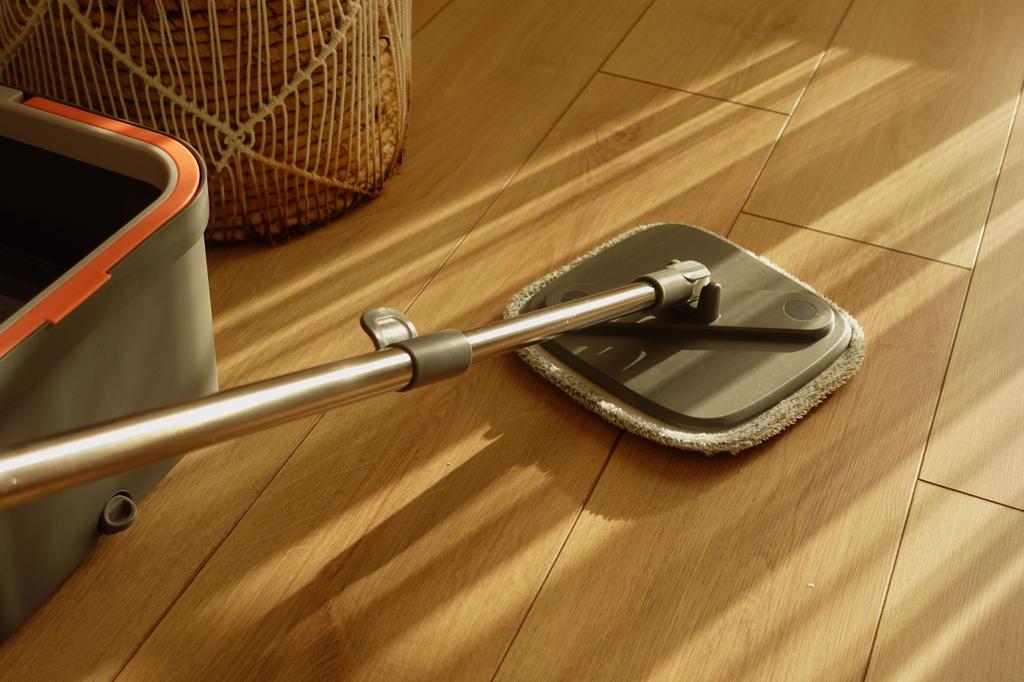
How to Clean Hardwood Floors: Simple Steps for Long-Lasting Shine
Updates & tips
How to Get My HP Printer Back Online? (Full Guide)
An HP Printer going offline means it’s no longer connected to a device or a network. Imagine sending an important document to your printer, only to find it showing an offline status — this is known as an ‘offline printer error’. It can occur for various reasons, such as outdated printer drivers, connection issues, an overloaded ‘print queue’, or incorrect printer settings. This problem is common among HP users, but it can be fixed easily using a few troubleshooting methods discussed below. Solution 1: Check Your Printer and Network Connections Your HP printer may go offline if it’s not securely connected to a USB, Ethernet, or Wi-Fi network. The network may be weak, or cables may be loosely connected. Hence, before moving on to the advanced methods, let’s check the printer’s connection. Check if the USB or Ethernet cable is well connected to the printer. Unplug and replug the cables to the ports. If using a USB cable, try a different USB port on the printer. If you are using a Wi-Fi network, then confirm that the printer is properly linked to the wireless network. Additionally, check your internet speed by running an online speed test on your computer. If you find the cables damaged or broken, replace them with new ones. Then try to use your printer. Solution 2: Restart the Printer and Wireless Router If you’re using a Wi-Fi connection, restarting the Wi-Fi router and printer can bring your HP printer back online. Restarting helps clear temporary glitches in the device. Step 1: Restart the Wi-Fi Router Disconnect your router’s power cable from the main power supply on the wall outlet. After 30 seconds, reconnect the cable to the wall power supply. Step 2: Restart the HP Printer Disconnect your printer’s power cable from the main power switch on the wall outlet. Press the Power button on your printer until the light turns off. After 30 seconds, reconnect the printer’s power cable to the power switch on the wall. Press and hold the power button on the printer to turn it on, and then release it when the power light starts to flash. Solution 3: Update or Reinstall Your HP Printer Drivers Printer drivers are necessary software that allows a printer to communicate with the device, such as a computer. They help the printer and computer communicate properly. If they aren’t up to date, the printer won’t recognize the print commands and won’t print. In this situation, you must reinstall the printer drivers using these steps. Visit support.hp.com on an internet browser and select the Software and Drivers option at the top. Select printer as your product type, and type your printer model name in the search bar. Now, select a driver or software package, and click the Download button next to it. Press enter or click to view image in full size Let the drivers download to your computer. Visit the Downloads folder on your computer, and double-click on the driver’s file. The system will ask you to run the file; select Yes. Finally, let the installation process begin and finish. Solution 4: Run Diagnose and Fix From HP App There is a tool in the HP app known as Diagnose and Fix for Windows and Mac. This tool can identify and resolve the common issues that cause your printer to be offline. Here are the steps to run this tool. Go to the 123.hp.com website, download the HP Smart App, and complete the on-screen steps. After that, open the application and select your printer from the given list. Find the Diagnose & Fix icon on the app’s homepage, or you can find it under the diagnostics section. Click on Start to start the diagnostic process. Don’t close the app during this process. Solution 5: Change the Printer’s Status From Offline to Online If you set the HP printer offline on the computer, it won’t recognize any print commands. Therefore, you need to set it online using these steps. Click the Start button on the computer’s taskbar at the bottom, and search for Settings. From the sidebar, select Bluetooth & Devices, and then select Printers & Scanners. After that, you have to select your printer’s name and click the Open Queue option. Click “Printer” on the next window and see if “Use Printer Offline” is selected. Uncheck this option to set the printer online again. That is how you can change the printer’s status from offline to online. Press enter or click to view image in full size Frequently Asked QuestionsHow Do I Resolve Issues With My Offline HP Printer? Learn “how to fix an offline printer”, check its wired or wireless connections, restart both the printer and the connected device, set the printer online on the computer, and reinstall the printer drivers. Additionally, you can run diagnostics and make repairs through the HP Smart app. What Does Offline Status on HP Printer Indicate? An offline printer indicates that it can’t connect to a computer or a device to print. In this scenario, the printer displays an ‘offline’ status. If your printer is connected to Wi-Fi, its Wi-Fi light may suddenly turn off. What Makes My HP Printer Go Offline? Several factors can cause your printer to go offline, including connection issues, out-of-date printer drivers, incorrect printer settings, and the printer being set to offline mode on the computer. Source: How to Get My HP Printer Back Online
Martin AC Repair & Commercial HVAC Contractor
Company address : 7788 Foothill Blvd, Tujunga, CA 91042 . Website : https://martinacrepaircommercialhvaccontractor.com . phone : +17472456918 .Martin AC Repair & Commercial HVAC Contractor is your trusted partner for reliable, efficient, and expert heating and cooling solutions. We specialize in residential AC repair and full-service commercial HVAC systems, ensuring comfort and performance year-round. With a commitment to quality workmanship and customer satisfaction, Martin AC delivers comfort you can count on.
How to Get Samsung ProXpress M3370FD Printer Back Online?
A Samsung printer showing an offline status means it cannot communicate with the computer or another device, which is why it doesn’t print anything. Whether connected by wire or Wi-Fi, the printer may fail to recognize the connection, showing an “offline” status on both the display and the computer. In some cases, the Wi-Fi light may also blink, indicating that the printer is not connected. As an IT support executive with a passion for technical solutions, I have helped many users fix their offline printers through my blogs. Today, I will guide you on resolving the Samsung ProXpress M3370FD offline error. Before we dive into the solutions, let’s first understand the reasons behind this issue. Press enter or click to view image in full size Causes of Samsung Printer Offline Error Printers don’t go offline all of a sudden. It usually happens due to minor technical issues or bigger problems related to drivers and software. Some common causes include: Connection errors between the printer and Wi-Fi/USB. Power supply issues. Wrong printer settings on the computer. Outdated drivers or software. Top 3 Ways to Get Samsung ProXpress M3370FD Printer Online After understanding the possible causes for an offline printer, it is time to understand the right solutions. Here are the suitable solutions that even beginners can follow to fix the problem in their printer. Solution 1: Check Physical Connections The first and basic method is to check the printer’s connections. Verify if the printer is securely connected to the USB or the internet connection. Make sure the cable is secure and not damaged. Replace it if needed. Check if the Wi-Fi light on the printer is “flashing in solid blue or green”. Make sure your printer and computer are connected to the same wireless network. Sometimes it can also show the printer offline. To check the internet connection, run an online internet speed test on the computer. It will show the network speed. If it’s low, restart the wireless router. That’s how you can check the printer’s network connection. Finally, check if the printer is online again. If not, check the next method. Solution 2: Set Your Samsung Printer as Default When the printer is not set as a default printer, it might show an offline status. Hence, you must set it as a default printer using the steps below: Click the Start menu and open Settings. Select the Bluetooth & Devices option, and then select Printers & Scanners. After that, select your printer from the list and click on Printing Preferences. Disable the “Let Windows manage my default printer” option. Press enter or click to view image in full size Next, select your printer’s name from the list of printers. Choose the “Set as default” option, and the printer’s status will be changed from offline to online. Once the printer is set as the default printer, it will return to an online status. If the issue still persists, continue with the next method. Solution 3: Update Samsung Printer Drivers Printer drivers are the software that enables a printer to communicate with the computer. When they are out of date, the printer can’t connect to a device and shows an offline status. In this situation, you need to update them using the steps below. Since HP acquired Samsung’s printer business in 2017, you need to visit support.hp.com to download drivers for Samsung printers. Click the Software & Drivers option at the top, and then select Printers. Type your printer’s name in the search box, and then a list of drivers appears on the screen. Select the basic drivers option, and click on Download to download the software on your computer. Go to the Downloads folder on the computer, and double-click on the file. Launch the installer and proceed with the on-screen prompts to finish the setup. This is ‘how you can update the printer drivers’ for the Samsung printer to bring it from offline to online status. Wrapping Up An offline Samsung ProXpress M3370FD printer can be very irritating, especially when it disrupts your regular printing tasks. I have faced this issue many times and learned effective ways to fix it. Based on my knowledge and experience, I want to share simple methods to resolve the offline printer problem so you can try them on your device. I recommend starting by checking the connections first and then moving on to advanced troubleshooting methods if needed. Press enter or click to view image in full size Frequently Asked QuestionsHow Do I Resolve Offline Error on My Samsung Printer? To resolve the offline error on your Samsung printer, you can follow these methods: check the printer connection and power, restart the wireless router and computer, update the printer drivers, and set the printer as the default device. What Does It Mean by an Offline Samsung Printer? An offline printer means it cannot communicate with the computer or network, often due to poor connectivity, wrong settings, or loose cables. As a result, the printer displays an “offline” status on either its screen or the computer, and sometimes the Wi-Fi light may blink, indicating a network glitch. What Makes My Samsung Printer Go Offline? The most common causes include poor connectivity, loose cables, incorrect printer settings, or outdated drivers/firmware. While other issues may also occur, these remain the primary reasons for the problem. Source: How to Get Samsung Printer Back Online