Prefer to talk to a pro?
Call today, and let us connect you with the perfect merchant!
Call today, and let us connect you with the perfect merchant!
About Woodstock, IL
Woodstock is a suburb of Chicago and is located in McHenry County, Illinois. Attractions include Historic Square, the historic Woodstock Opera House and the Old McHenry County Courthouse. Woodstock is home to two high schools and a number of private schools. McHenry County college is located in nearby Crystal Lake. Parts of the movie Groundhog Day were filmed in Woodstock and Orson Welles attended the Todd School for Boys in Woodstock. Annual celebrations include Groundhog Day festivals and tours, Harvest Fest and the McHenry County Fair.
Best Businesses in Woodstock, IL






Prefer to talk to a pro?
Call today, and let us connect you with the perfect merchant!
Call today, and let us connect you with the perfect merchant!
Related articles
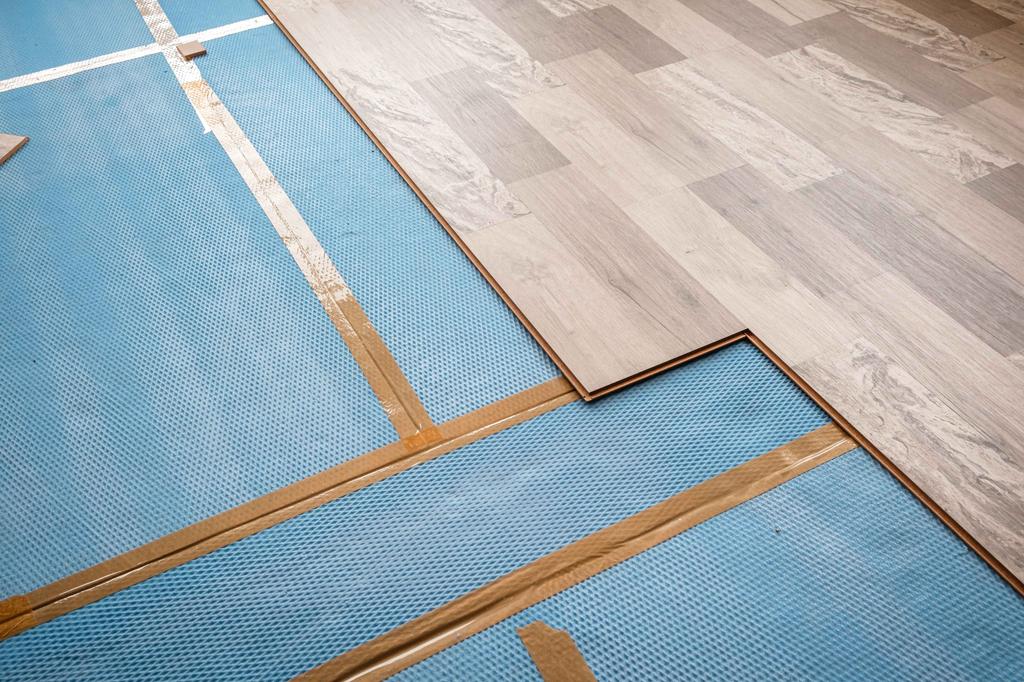
How to Fix Squeaky Floors: Easy DIY Solutions That Actually Work

Landscaping Gravel Types: Pros and Cons
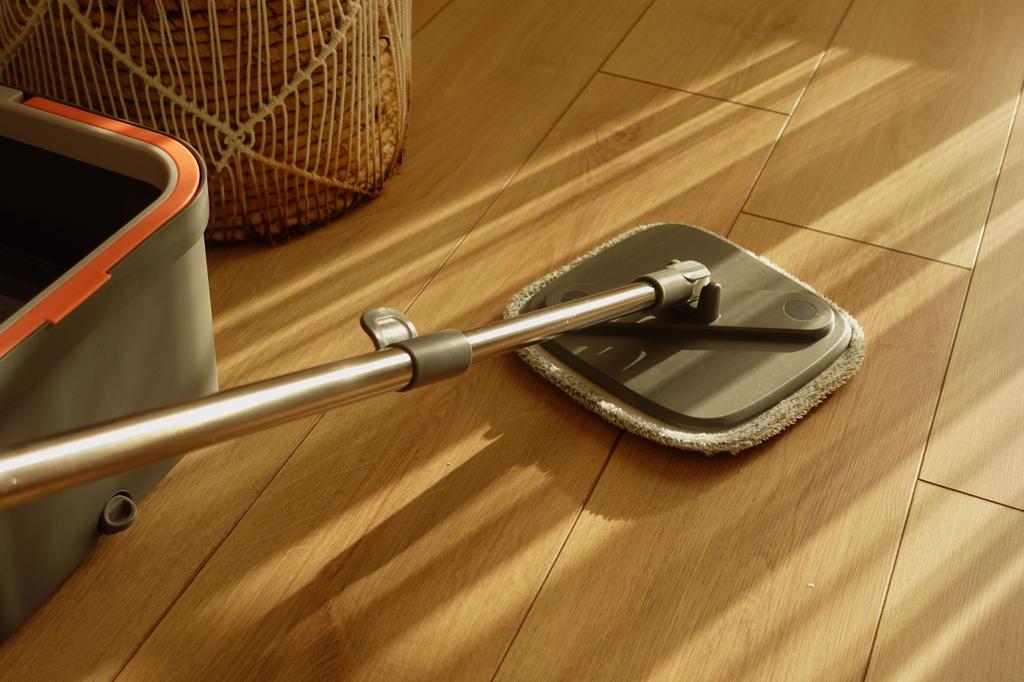
How to Clean Hardwood Floors: Simple Steps for Long-Lasting Shine
Updates & tips
Easy Methods to Complete Your HP Printer Wireless Setup
The HP printers have become smarter than earlier due to their wireless feature. In addition to printing, you don’t need to rely on a cord or cable to connect the printer to your computer. The wireless feature has been added to many HP printers, making it easier for us to use without sticking to those wires. However, the HP printer wireless setup processis not easy for everyone, especially for beginners. Therefore, you need to follow the step-by-step instructions to setup your HP printer completely. Once you finish the process, you can easily print anything at an appropriate distance. Plus, you don’t need to place the printer near your computer because it can print the document wirelessly. Now, follow this write-up to setup your HP printer wirelessly. The blog explores the 4 quick and easy methods to setup an HP wireless printer for your computer. Let’s start with the first step of the setup procedure. Method 1: HP Printer Wireless Setup via Auto Wireless Connect With HP auto wireless connect, you can connect your printer to a wireless network automatically. For this method, you do not need to connect cables or enter any details such as network name or password details. Before using this method, you first need to install the software for the printer you are using: Open the browser and navigate to support.hp.com. In the next window, you have to enter the model name or number on the Search bar. Download the HP printer driver according to your operating system. Then, install the on-screen instructions to install on your PC. Further, turn on the printer and use the software. After that, you will be prompted for the Network connection type (Ethernet/Wireless). Then, select the Wireless and then click on Yes, send my wireless setting to the printer (recommended). Once done, you should wait for your printer to connect wirelessly. This may take some time. After finishing, you can hit the Finish. Finally, your printer is ready to go! Method 2: HP Printer Wireless Setup Using Wireless Setup Wizard The next method is Wireless Setup Wizard, which you can access on your printer’s control panel. This way, you can easily connect the HP printer to Wi-Fi. This method is only suitable for the HP printer having a graphics display. First, power on the HP printer. Then, unplug the USB cable or Ethernet cables from the printer. Afterward, navigate to the HP printer’s Control Panel and click the Wireless icon or head to the Network menu. Next, select the Wireless Settings and select the option Wireless Setup Wizard. Finally, you should find the network and type the WEP or WPA key. Then, click OK. Method 3: HP Printer Wireless Setup with WPS If you want to connect the HP printer to Wi-Fi, then your router and printer must support the WPS push button mode. The process hardly takes more than 2 minutes. Go to the HP printer and push the WPS button. If you can’t find the physical push button on the printer, you can navigate to the Control Panel to start the WPS button mode. For this, you have to select the Wireless menu. Then, hit the Wi-Fi Protected Setup. Afterward, complete the setup. Next, select the WPS button. Finally, you will be asked to press the WPS button on the router. Next, keep pressing the WPS push button for 2 minutes. That’s all you need to connect your HP printer wirelessly. Method 4: HP Printer Wireless Setup WI-FI Direct or HP Wireless Direct There is little difference between Wi-Fi Direct and HP Wireless Direct, such as Wi-Fi Direct enables devices to maintain the internet connection simultaneously. In comparison, there is no access to the network in HP Wireless Direct. Here is the way to connect to Wi-Fi Direct or HP Wireless Direct: Go to your HP printer’s Control Panel. And switch on the HP Wireless Direct or Wi-Fi Direct. Then, select the HP Wireless Direct icon or move to the Network Setup or Wireless Settings menu. Next, select Wireless Direct and switch on the connection. Further, you must connect to Wi-Fi Direct or HP Wireless Direct from the computer or phone. You will be asked for a WPA2 password (only when you are using Wi-Fi Direct or HP Wireless Direct on security.) Finally, you can print anything using your computer or mobile devices. Conclusion Finally, you have learned the HP printer wireless setup process. In this blog, we have explained 4 different methods such as Auto Wireless Connect, Wireless Setup Wizard, WPS, and Wi-Fi Direct or HP Wireless Direct. All these methods can help you connect your printer wirelessly. Hence, you can easily print your documents hassle-free from anywhere. All the techniques have been tested, and it works perfectly. However, if you are struggling to connect, then contact the HP support team. FAQs Question 1: How to setup HP wireless printer? Answer: Here is the way to setup a wireless HP printer using the push button method of Wi-Fi Protected Setup: Press the Wireless button for 3 seconds until the light blinks. Within two minutes, you must push your router’s WPS button. After that, install the HP printer software. Then, start printing your documents uninterruptedly. Question 2: How can I connect my HP Deskjet 3630 to a Wi-Fi network? Answer: Below are the methods to connect to an HP printer via Wi-Fi Direct method: Switch on the printer and load the A4 size sheets. Then, enable the Wi-Fi Direct by clicking on the icon. After that, the white light will flash. Further, the Wi-Fi Direct option on the screen will appear, meaning it is activated. Now, enable Wi-Fi on your phone and select your HP printer, Enter the password (push the info button on your printer to print the password). Finally, connect the printer using the HP Smart app. Question 3: Where can I find my Wi-Fi password for my HP printer? Answer: Connect your HP printer to an Android phone using the HP smart app to find the Wi-Fi password. Then, follow the steps mentioned below: Open the HP Smart app and click the (+) button. On the next screen, you will see the connected HP printer. Click on it to proceed. After that, go to the Printer Settings. Next, scroll down and click on the Network Information option. Finally, you will find the password below the Passcode option. Source URL: – Hp Printer Wireless Setup
HVAC Installation
As a general contractor with years of experience, HDP Services understands the importance of quality workmanship, especially for HVAC installations. Our skilled team is equipped to handle the installation process of your HVAC system, guaranteeing a smooth and efficient process from start to finish. Whether you are building a new home or replacing an old HVAC system, our team will work closely with you to determine the best solution for your specific needs. We take into account factors such as the size of your space, budget, and energy efficiency preferences to recommend the most suitable HVAC system for your home. We are a team of drywall contractors and painting contractors as well and are trained to handle any drywall and painting work, big or small, with the utmost professionalism and attention to detail. With our commitment to quality, exceptional customer service, and attention to detail, we are confident that we can meet and exceed your expectations for all your HVAC installation, drywall, and painting needs. Contact us today to learn more about our services and to schedule a consultation.
Drywall Services
HDP Services is a dependable drywall contractor that provides top-notch drywall finishing and drywall repair services. With years of experience in the industry, our team of experts has mastered the art of providing high-quality drywall solutions that exceed our clients' expectations. We understand that drywall finishing is an essential aspect of any construction project, so we use the best techniques and materials to ensure your walls look flawless and smooth. Our drywall repair services are equally outstanding, and we can fix any cracks or holes on your walls to restore their aesthetic appeal. Additionally, we offer competitively priced services and strive to complete projects within the agreed timelines. At HDP Services, we are committed to providing personalized services that meet our clients' unique needs. You can trust us to deliver exceptional drywall solutions that add value to your property. Contact us today and experience the excellence of working with a reputable drywall contractor in Woodstock, IL.